Six Colors
Six Colors

Apple, technology, and other stuff

This Week's Sponsor

Monologue: smart dictation and voice notes for Mac, iPhone, iPad, and Apple Watch.

By Shelly Brisbin

Zoom PodTrak P4 review: Podcasting and the other Zoom
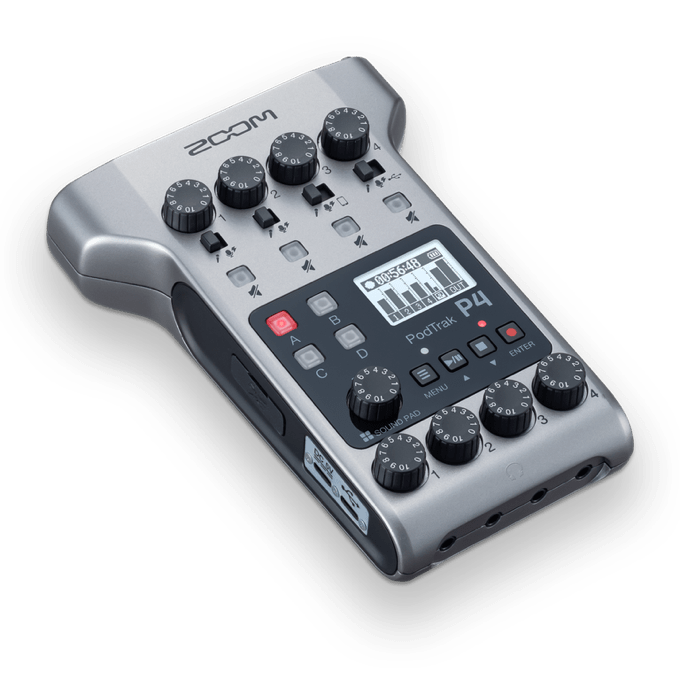
PodTrak P4

I recently said goodbye to an old friend – a 12-channel analog audio mixer I’ve used to produce podcasts since around 2007. It was always overkill, even when I recorded shows around my kitchen table with three or four guests. This mixer was better suited to making and recording music, but I loved the flexibility it offered. I decided to replace it with something that could both connect directly to a modern computer and give me some podcast-specific features that didn’t require quite as much fiddling and cabling as the mixer did. I chose the Zoom PodTrak P4, a four-port audio interface and recorder that’s marketed specifically to podcasters. I’ve used it for about a month.

Three Roads

I plan to do three specific kinds of audio work with the P4. First, I wanted to record a podcast from my home “pod closet” with remote guests, all connected by conferencing software. The second kind of recording I do a lot is for my job as a radio reporter. I call interview subjects via the phone or FaceTime Audio and record their voices for later cutting into reported stories. Lastly, I planned to record podcasts or radio interviews in-person with guests, whether I’m doing it at home or at a conference. To varying degrees, the mixer allowed me to do all of these things, but the P4 does them effortlessly, and I don’t need a gig bag full of cables, or a cheat sheet for the various settings I used to optimize everything..

Remote Guest Podcasts

For the panel shows I do on Parallel and Lions, Towers & Shields, my guests and I use Zoom or any other conferencing tool that can be run on a computer. I ask each guest to record their side of the conversation. To record my end, I plug a mic into one of the P4’s XLR inputs. I connect the recorder to my MacBook Pro via USB-c. Now, the P4 is acting as an audio interface, sending my voice to my panelists, and bringing theirs into the recorder, which serves as the MacBook’s output. But I can also be recording to an SD card in the P4, so there’s always a backup, and the occasional problem of sending the wrong input channel to the audio software on the computer (happened to me a few weeks ago) is solved.

I recently hosted an episode of the Game Show, over on The Incomparable. It’s a standard panel show, so we connected on Zoom and each recorded our tracks. But since the P4 includes a four-button sound pad, I decided to experiment with bells and buzzers. Silly, I know, but it worked in the context of the show. First, I copied audio files for the bell and buzzer I wanted to use to the root level of an SD card. Then I mapped those files to the recorder’s sound pad feature and adjusted a few settings for each button, like whether the sound should loop, or require that I hold down a button to keep it playing. The P4 comes with a few of its own sound effects, like a sad trombone, applause and a rimshot. I decided to add a rimshot to my sound pad. I was not disappointed. Let’s just say we recorded this game on Father’s Day, and dad jokes were very much in season. The sound pad’s audio is mixed with whatever else is leaving the P4, including the microphones. You set each channel’s level separately with a physical knob, so it’s easy to tweak things in real time.

P4, Phone Home

I record a lot of phone and FaceTime audio interviews as part of my work as a radio reporter. Using a technique called mix-minus, I can record both sides of the convo, but keep the person I’m talking to from hearing themselves when I send the full output down the line. Mixers with multiple audio buses, like my old Yamaha, are great for creating a mix-minus, and so is software like Audio Hijack. I’ve even tricked my Zoom H6 field recorder into doing a mix-minus, but the process requires a bit of setup before I can make a simple phone call.

With mix-minus built into the P4, I can record a phone call with just my phone and the recorder – no computer required. There’s a TRRS input for the phone, and a switch to enable mix minus on that channel. All I do is plug the phone and a mic into the P4 and make the call from my iPhone. It’s really slick, and its appeal has to do with being able to instantly jump on and record a call from my desk – not the “pod closet” at the other end of the house – or on the road, assuming I have a mic I can plug in. There are cheaper ways to make this work, using a nest of cables, so it might not make sense to buy a P4 if all you want to do is record phone calls, but it’s invaluable for me.

Field Trip

Here’s the scenario I haven’t tried yet: it’s the last night of an assistive technology conference and my colleagues and I from the Blind Bargains podcast want to record a wrap-up episode in a hotel room. I’ve brought mics for everyone, and we’re gathered around a table. In the past, I’ve used the Zoom H6 for this, and it’s great. But it’s a little bulkier than the P4, so I’ll only choose it if I have more than four people to record. (The “6” in Zoom’s H6 is achieved with an $89 attachment that adds a pair of XLR ports, so I can mic up to six people.)

With the P4, each person can use his or her own pair of headphones, because each channel has a headphone port, complete with volume controls for each. This is a huge deal in a product at this price point.

It’s also possible I could use the P4 as an actual field recorder, carrying it on reporting trips instead of the heavier H6. I’d want to get a better feel for the unit’s battery life before I tried it.

More Great Features

The P4 provides phantom power for microphones that need it, and there’s a low-cut and a limiter available for each input. All of that matches up with what you’ll find on Zoom’s field units, like the H6. The P4 packs a surprising amount of gain. When using a standard audio interface, or mixer, it’s often hard to get the gain required to drive dynamic microphones like my Heil PR-40, or the popular Shure SM7B. The P4 takes a little getting used to on that score. I’ve inadvertently recorded clipped audio because I couldn’t believe that I could keep the input level so low and still get the output I wanted. And you need to watch the levels rather than completely trusting your ears and the headphones you’ve plugged into the P4.

But is it Good?

The P4 is versatile and physically durable. It’s lightweight and its menuing system is simpler than what you’ll find in many field recorders. There’s an eight-port version called the PodTrak P8, which not only has more ports, but better components and some additional features. It’s also far less portable. The P4 is definitely a budget unit, but it’s a really good value, too. My biggest beefs are the size and readability of the small display screen, and the odd fact that a light below each mic level button indicates not that the mic is in use, but that it’s muted. I’d also like greater visual contrast between the control knobs and buttons, and their labels.

[Shelly Brisbin is a radio producer and author of the book iOS Access for All. She's the host of Lions, Towers & Shields, a podcast about classic movies, on The Incomparable network.]


By Dan Moren for Macworld

Why the 13-inch MacBook Pro is still integral to Apple’s lineup

At various points during the past several years, Apple has been rated the most valuable corporation in the world. And it’s pretty safe to assume that the company didn’t get to that point without being strategic about how it positions its products.

One big part of what’s made Apple so successful is that the company makes sure that it’s got products at every price point. No, it doesn’t compete in the super-budget department when it comes to devices—Apple is happy to leave those low-margin offerings for the likes of Android phones and Dell PCs—but when it does enter a market, it makes sure it always has a solid spread.

Of course, when you’re a company that builds powerful, good-looking devices and values its profit margins, your options are limited somewhat when it comes to making your devices more affordable. Which has led to a key part of Apple’s strategy across all its lineups: in with the old. Apple’s made a science out of retaining older products and selling them at lower prices in order to plug holes in their lineups, and it’s a move that continues to serve the company well.

Continue reading on Macworld ↦


This July 4 Jason spends some time away from the grill to discuss charity shops, stroopwafels, and the differences between the U.S. and the UK. Meanwhile, Myke has been inspired to build his own iPad-based status board. Vive la différence, as they say in yet another country.


WeatherKit hacking, beta features, and M2 timing

Jason can see into the future, we ponder how non-nerds will receive some new beta features, and the great mystery of Apple’s M2 Mac roll-out.


By Jason Snell

Adding Apple WeatherKit data to my own weather widgets

Note: This story has not been updated since 2022.

widget
A prototype iOS widget

I’ve spent 17 years with a weather station in my backyard, and parsing that data in interesting ways. Everybody needs a hobby.

At WWDC 2022, Apple announced that it was releasing its follow-on from Dark Sky, which it acquired in 2020: it’s called WeatherKit, and it will be available to apps on Apple’s platforms (via Swift), as well as on the web and other platforms (via a web-based REST API). App developers, who pay $100 a year to Apple for the privilege, will get 500,000 API queries per month as a part of their membership—and the prices go up from there.

Last week I had a moment of realization: I pay for an Apple developer account for various reasons. That means I’ve got access to WeatherKit! And that means that after years of building ways to visualize the current and past weather at my house, I could consider the future. (And yes, I could’ve done this years ago with a different weather API like OpenWeatherMap—which offers a million queries a month for free!—but I didn’t. And I’ve come to respect Dark Sky’s data. The opportunity to use a brand-new Apple service seemed too good to pass up.)

All my recent efforts parsing JSON data for things like air-quality widgets and menu bar items were sure to pay off because, at its core, Apple’s new web API is just passing back JSON. But unlike many other web APIs, which let you pass your API key in a URL string, Apple has chosen a more complicated approach.

First, you’ve got to set up a bunch of stuff on Apple’s developer site. Apple has to generate a private key and a service ID for you, and then you need to construct a JSON web token and include it in the header of API request you make in order to log in. I got most of the way there to implementing this in python using pyjwt, but I made one tiny error that I only realized after watching Simon Barker’s walkthrough of WeatherKit setup.

weather forecast in menu bar

Once that was all done, the avalanche of WeatherKit forecast data began to roll in. Now my challenge is to decide how to present the information. I’ve added a forecast graphic to my SwiftBar weather-status menu item and placed an SF Symbol representing the rest-of-day forecast next to the current temperature at my house, as relayed from my own weather station. It’s a work in progress, but I’m encouraged.

The next step is to revamp my two small iPhone and iPad weather home screen widgets, built in JavaScript using Scriptable, and turn them into a single medium-sized widget containing temperature, air quality, and a weather forecast in the style of my dearly departed Weather Line—all in one. My JavaScript skill is poor, and building widgets in Scriptable has its own challenges, but yesterday I managed to adapt an hourly weather widget to use my data sources and display days instead of hours. It’s ugly, but there’s plenty of time for me to make it prettier.

If you’re interested in playing with the WeatherKit REST API, I’ve got a sample script for you that parses some basic data and generates a basic bar chart. You’ll need to be an Apple Developer, of course. But if you are already one—or know someone who will provide you with an API key and access to those sweet 500,000 free calls—you might find accessing it to be a fun project.


By Dan Moren

The Back Page: A guide to new Apple software features for your non-tech savvy friends and relatives

Look, not everybody pays as close attention to Apple announcements as we here at Six Colors—your preeminent source for Apple news1—do. That’s understandable: most of the things that Apple showed off at its annual Worldwide Developer Conference Keynote this month won’t materialize until this fall at the very earliest. And even then, more eyes will be on the actual new phones that the company is releasing.

But you know what’s coming: sooner or later, all those software updates are going to make their way onto the devices of your friends and family and you—yes, you—are going to be the one called upon to explain them.

So, in advance of the inevitable tsunami of calls, emails, texts, and FaceTimes, allow for me to provide you with the following invaluable resource: I’ve combed through Apple’s announcements to discover the features that your less tech savvy friends and relatives are definitely going to be asking you about and how you can explain them to the layperson.

Five features to share

Passkeys: When is a password not a password? When it’s a passkey! Stress that the good news is they’ll never need to come up with another password. The bad news is no, they can’t keep using fluffybunny1974 for every single site.

Customizable Lock Screen: Rotating wallpapers featuring all their favorite kids, grandkids, pets? This one’s a real winner for the average user. Just remember that those widgets were originally called “complications” for a reason, so maybe just stick to the photos?

Locked Hidden Photos: Because you never want to see those photos by accident. Ever.

Weather on iPad and Mac: Yes, there’s a Weather app on the iPad or Mac now. No, this doesn’t mean they have to stop watching The Weather Channel and/or texting you about the rainstorm that’s in the forecast ten days from now.

Shared Tab Groups: Instead of relatives sending endless links to Facebook posts about conspiracies or forwarding the latest funny cartoon, tell them that you can now just have a shared group of tabs where they can share with you all that “important” information and you can check in on at any time. (Or, you know, not.)

Five features to keep away from them

Stage Manager: Okay, so there’s windows on the iPad now. But not like those windows that pop up when you swipe up while you’re in an app. Different windows. Okay. You can drag them and arrange them however you want…except only within specified sizes and locations. Also it’s a mode that you have to turn on and off in the Control Center. Yes, that thing you swipe down from one corner of the screen with all the kinda inscrutable icons.

On second thought, maybe have them leave it off.

Continuity Camera: Because what you’ve really but waiting for is the ability to see up your family’s nostrils in the stunning high definition allowed by an iPhone camera.

Freeform: Finally, the ability to take those painful games of Charades that you play with your family on vacation and add in the awkwardness of having thirty people shouting out answers over a FaceTime call.

Redesigned Home app: Let’s be fair: your family doesn’t have any smart home tech, so this app might as well just be a shortcut that links them to pictures of different rooms in their house that you tell them are live security cameras. Oh, they got rid of that blanket a year ago? There’s a lag on the cameras—you just have to wait for them to catch up.

Stocks widgets: Nobody wants to see this information on this Home Screen. Trust me. Never.


  1. But not Apple News. Or even Apple News news. 

[Dan Moren is the East Coast Bureau Chief of Six Colors, as well as an author, podcaster, and two-time Jeopardy! champion. You can find him on Mastodon at @dmoren@zeppelin.flights or reach him by email at dan@sixcolors.com. His next novel, the sci-fi adventure Eternity's Tomb, will be released in November 2026.]


By Jason Snell for Macworld

Apple tests the waters for more iPhone themes

When iOS 14 came out, TikTok was filled with videos of extreme iPhone interface customization techniques, courtesy of custom widgets and icon replacement via Shortcuts. Everyone’s aesthetic is different, and you might have considered those customizations silly or gaudy, or even ugly, but the success of those videos sent a powerful signal: people want to customize their devices.

It’s a tale as old as time, dating back to the early days of the Mac. And yet modern Apple has been reluctant to let users customize their devices. Yes, you can set your own Lock Screen and wallpaper, but beyond that, things have been pretty limited.

But the iOS 16 Lock Screen, with its adjustable fonts, color overlays, and custom widgets, suggests that Apple may be entering a new phase. It seems that Apple has taken notice of that positive reaction to iOS 14 and has decided to loosen the reins a little bit. The Lock Screen may be just the start of the changes in the works.

Continue reading on Macworld ↦


by Jason Snell

iPhone review: A game-changer years in the making

Me, almost 15 years ago at Macworld:

Apple’s iPhone is a product that’s been years in the making. Apple’s designers have been working on it for years, and the Web has been buzzing about Apple’s entry into the phone market for just as long—or maybe even longer. But now, after six months of intense speculation since its introduction at Macworld Expo, the iPhone has arrived. Although the iPhone is not without a few quirks, it makes good on the hype that surrounded it.

While it’s the 15th anniversary of the iPhone today, I wasn’t one of the reviewers under embargo. We sent out Macworld staffers to wait in lines to buy them—thanks to Brian X. Chen, now of the New York Times, for buying the one I ended up taking with me to review. I wrote my review while on vacation in a canvas-topped tent cabin in the Sierra Nevada mountains, and had to drive down into civilization to file it. What a contrast between such a new, high-tech device and the completely rustic setting.

Child with cookie in meadow
My then two-year-old son in a Sierra meadow, with cookie. Shot on original iPhone.

Anyway, happy 15th to the device that changed everything.


Our favorite iPhones of yesteryear, how paranoid we are about our online privacy, our sleep tracking habits, and where we go to work outside of our homes.


by Jason Snell

VirtualBuddy virtualizes macOS 12 and later on Apple Silicon

Mac hacker extraordinaire Gui Rambo has launched an open-source project, VirtualBuddy, that lets you virtualize macOS on Apple silicon Macs for free:

VirtualBuddy can virtualize macOS 12 and later on Apple Silicon, with the goal of offering features that are useful to developers who need to test their apps on multiple versions of macOS, especially betas.

I’ve put this on my to-investigate list. It might be especially useful during beta-testing summers.


We discuss the “Lightyear” box office and the future of Pixar, finding better ways to binge through smart software, and how streaming franchises are constructed. And then, once again, there’s Sports Corner.


Jason Snell returns to John Gruber’s The Talk Show to discuss the biggest threads from WWDC 2022 — in particular, Stage Manager and the M2 MacBook Air and 13-inch MacBook “Pro”. No sports talk (unless you count soccer).


For the Summer of Fun, Jason and Myke compare their iPhones—one’s Max, one’s Mini, but which one has the most apps and which one has the most photos? Also, Mark Gurman’s got our next 75 episodes plotted out thanks to his detailed dump of future Apple product announcements, Jason is unenthusiastic about the M2 MacBook Pro, and Justin did it.


Mail Merge and M2 milestones

In an earth-shattering event, Mail Merge returns to Pages. Oh, and the M2 arrived, too! (This episode also includes the audio of our 50-minute livestream from Wednesday morning about the M2 and MacBook Pro, for those who prefer podcasts to YouTube livestreams.)


by Jason Snell

A typeface from the Danish forest

Bjørn Karmann created the typeface Occlusion Grotesque by tracing and carving an initial typeface into a beech tree in Denmark.1 The tree is then left alone for a year, at which point the natural growth processes of the tree cause the trunk to expand, stretching the bark while also attempting to close the wound caused by the letter carvings. Karmann explains:

Returning to the tree reveals an unsupervised transformation that is unique to each letter of the alphabet. The artist now takes on an observant role and meticulously documents the letters with a camera and measurement tools. This is repeated every year with the important detail that the camera settings, lens, distance, and measurements stay consistent at every observation. 

The digitalization from the tree to a usable font invites the artist to become the design interpreter. For the most part, the letters can be traced, but occasionally due to unexpected bark behavior, edge cracking, and blurring of boundaries, the artist has to take decisions without diverting from the tree’s intent. 

The annual growth of the type is not represented in traditional font weights, but denotes the year of growth being used. What a fascinating and beautiful project.

[Via Paul Lukas and Michael Hochman.]


  1. “No trees were harmed in this experiment,” Karmann notes. 


Search Six Colors