Six Colors
Six Colors

Apple, technology, and other stuff

Support this Site

Become a Six Colors member to read exclusive posts, get our weekly podcast, join our community, and more!


By Jason Snell

The case for clipboard managers

Note: This story has not been updated since 2023.

Pastebot’s history window.

Last week, I walked myself through the process of realizing the power of macOS Defaults and how, over the two decades of modern macOS, Apple has addressed most of the basic needs of the average user. At the end of that process, I ended up discovering that the most glaring feature omission in all of macOS might just be its lack of a clipboard manager.

Response to that discovery has been… interesting. All the true nerds wrote in to agree vociferously about how they simply couldn’t live without one. Everyone else… has apparently spent the entire time they’ve been using a computer not using one and can’t really understand why they should care!

Let me walk you through the reasons why non-nerds should care, why Apple should consider making this a built-in macOS feature, and what apps you should try out if you decide to go for it. (If you prefer YouTube, you should probably just watch this excellent video from Stephen Robles from earlier this year.)

Breaking tradition

The clipboard’s weird, right? The Mac is credited with popularizing graphical user interfaces, but the clipboard is this invisible place where data lives, unseen but waiting to re-emerge at a later time. Rachel Greenham called it a liminal space stuff floats in the other day, and she’s not wrong. It’s like a little pocket universe.

But the clipboard exists at the heart of one of the greatest features of the Mac: the Cut, Copy, and Paste commands on the Mac’s Edit menu. It’s such a fundamental part of the computing experience that it’s kind of hard to conceive of what you’d do if you needed to get text from that web browser to that email window or from that word processor to that to-do app. (Drag and drop, maybe? So fiddly.)

Using copy/cut and paste feels like second nature, even to people who don’t consider themselves particularly sophisticated computer users. You pull it from here and put it over there. Even though it’s kind of esoteric—you have to use a keyboard shortcut or a menu item—I feel like regular users get it, internalize it, and use it pretty quickly. (Full credit to the Lisa group at Apple, who invented it in 1980.)

For all this time, the macOS Clipboard has been capable of holding one thing. It could be an enormous image file or a couple of characters of plain text—but if you copy something new, the old one goes away. One in, one out. (On classic macOS, the included Scrapbook desk accessory was a clever workaround since you could load it up with as much junk as you liked and then take it out later.)

Apple’s keeping the clipboard relatively untouched1 for decades suggests its perfection as a concept and Apple’s implicit satisfaction with it. And yet… surely there’s more that could be done with it? For years, third-party apps have extended the clipboard in numerous ways, while Apple has done almost nothing.

Why a clipboard manager?

If I’m going to suggest that Apple add clipboard management to macOS, I need to make a case that it’s going to be valued by regular people and not get in the way of normal use. Cluttering up the Mac interface with gewgaws is bad for the user experience.

What works to my advantage here is the clipboard’s invisibility. Even when you’re using a clipboard manager, that liminal space is still invisible, and so far as you and your Mac and all your apps know, it contains one single item. Copy in, paste out. Nothing changes!

But here’s the beauty of it: With a clipboard manager, that liminal space no longer holds a single item. Behind the single item, there’s a big stack of previous items—a bit like how a browser tab only holds a single page, but the browser history remembers every previous page you’ve visited. Imagine if you took the back button and history away from a web browser. (It would be bad.)

The magic moment of using a clipboard manager comes when you realize you need to access something that’s not the One True Item on the clipboard. If you’re using the standard Mac clipboard and you copy something priceless and then, a minute later, copy something useless—welp, too bad, the priceless thing is gone, and it’s never coming back. A good clipboard manager lets you use a keyboard shortcut or a menu item to view your previous clipboards, choose the item you want to fish out and bring it back.

And that’s my pitch for why macOS should have its own clipboard manager: Because it adds undo to the clipboard via a discoverable mechanism like a keyboard shortcut and an item in the Edit menu right next to Cut, Copy, and Paste. For me, it’s become part of my Mac muscle memory: command-backslash brings up a long list of clipboard history, from which I can retrieve what I want.

It gets better. Once you know that copying something to your clipboard doesn’t destroy what’s there, your use of the clipboard can become far more extensive. You lose the fear of wiping out something important, replaced with confidence that you can grab something in case you want it later and stash it away in the clipboard history.

Using a clipboard manager also reduces a lot of annoying clicking back and forth between different apps. If you need to copy five items from a document and paste them into five different web form boxes, you don’t need to tab back and forth and copy them one at a time. Just copy all five, then move to the web form and paste them from history. It’s so much less annoying!

Beyond the basics
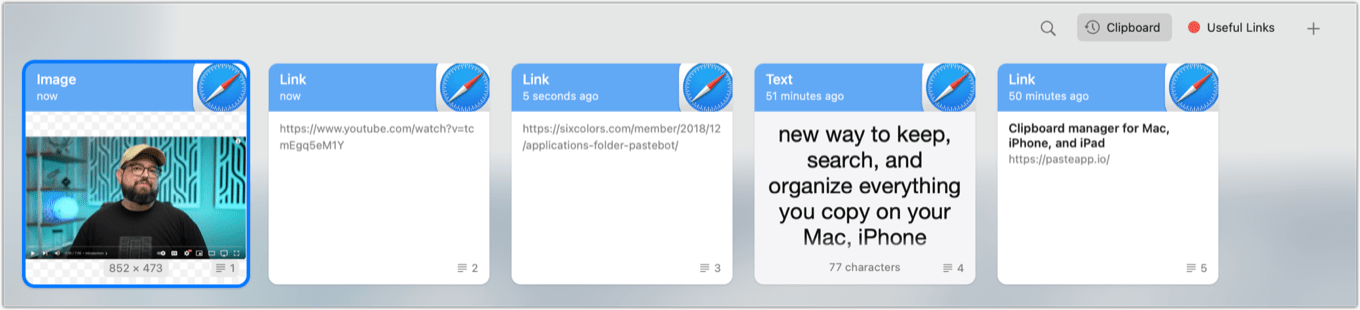
Paste’s clipboard shelf.

That’s my regular user case. Of course, there are power-user features that Apple could choose to implement—but in my opinion, they shouldn’t bother. Apple features are generally crowd-pleasers that leave a lot of the nitpicky details to be addressed by third-party apps. It should leave something for the third-party apps that I’m suggesting get Sherlocked.

Those power-user features can include things like semi-permanent “shelves” for commonly copied and pasted items or powerful filters that can convert clipboard content on the fly to different formats. (It’s pretty great to copy styled text and paste Markdown, for example.) Third-party clipboard managers let you add keystrokes for all sorts of items, including pasting two or three or more layers deep in the history. I’ve been using a clipboard manager for two decades, and even I don’t use most of these features, but they will absolutely fit perfectly into some workflows.

LaunchBar’s history window.

If you don’t have a clipboard manager, where can you get one? First off, you might already be using one! I use LaunchBar, which has one, and Keyboard Maestro, which also has one. If you use the launcher apps Alfred or Raycast, you’ve already got a clipboard manager installed.

When my friend Todd Vaziri surveyed social media asking for suggestions for a clipboard manager, two apps were the most common standalone suggestions2: the $13 Pastebot, which Dan Moren uses, and the $30/year Paste, which is also available as part of the SetApp bundle.

I’d need to use both of those apps for a long time in order to write a deeply nuanced comparison. They’re different, each with its advantages, and you should be able to try both for free via one means or another so you know what you’re getting yourself into. Paste has a very visual “shelf” interface that some people will love (and which struck me as overkill), while PasteBot strikes me as being pretty much the platonic ideal of a third-party clipboard app. (Still, I’m sticking with LaunchBar. Muscle memory is powerful.)

Will it happen?

Sometimes, Apple surprises us and releases new macOS features that are legitimately macOS features, not just spin-off features from iOS and iPadOS. But most of the work Apple does these days is building cross-device features. So, while I’d love to discover a future version of macOS with a basic clipboard history built in, I’d like to make a pitch that’s more extensive but might be a better sell inside Apple.

What if… clipboard history for all Apple devices? That’s right, iPad and iPhone too. The interface would be a bit more awkward there, but it’s already awkward and involves meaningful taps and floating menus… so would it be any worse? And then, to wrap it all together, your devices all use iCloud to sync your clipboard histories together so they’re accessible everywhere.

Of course, there are security and privacy issues here—but a lot of those issues were already addressed by Continuity Clipboard. I think they can be overcome if Apple’s sufficiently motivated, and the idea of being able to fish out a link I copied on my Mac a few hours ago on my iPad…. seems pretty great?

Anyway, enough dreaming. If you’re a Mac user, you can benefit from this feature now via a third-party utility, and it might even be one you’re already running! I can’t recommend using a clipboard manager highly enough. Even if all it ever does is spare you from accidentally copying over something important, it’ll be worth it.


  1. In 2016 Apple added Continuity Clipboard to iOS 10 and macOS Sierra. It shares that single clipboard across your devices… when it works. 
  2. Many others are also available. Far too many to list here. 

It’s finally happened: Netflix has made its viewing data public… via an Excel spreadsheet? Also: Disney+ and Hulu get connected in the U.S., it might be the endgame for Paramount Global, and your letters!


By Dan Moren for Macworld

The iPhone 15 was a big deal in 2023 but these three moves were even bigger

We’re just a couple weeks away from putting 2023 in our rearview mirror, so it’s time—as the natural order of things dictates—to cast our eyes back over the last twelve months and attempt to shape the events into some semblance of narrative.

The past year in Apple has certainly been eventful, ranging from big updates on the Mac line to totally absent iPads to a brand new product category to challenges from rivals and governments alike. Even if the company hasn’t had its most blockbuster financial results of all time, you’d be hard-pressed to say it hasn’t had its nose to the grindstone.

Of course, the big moves aren’t always the ones that are obvious from the outside; sometimes there are trends that really only become apparent when you have the chance to look at them in retrospect.

Continue reading on Macworld ↦


The additional security measures we use, tech resources for traveling abroad, our valuable vintage tech, and how we feel about crowdfunding.


Are things worse than they used to be or as bad as they always were?


By Dan Moren

How to stop Mail logs from eating your disk space

Note: This story has not been updated since 2023.

The other week, I noticed that the amount of free disk space on my MacBook Air had dropped rather precipitously to under a few gigabytes. As I usually don’t store that many files on that machine—much less large ones—I went poking around to figure out what was eating up all my disk space1.

The culprit, as I reported on Mastodon, turned out to be a Mail log for my iCloud account2 that had ballooned to an astonishing 28GB—a not insignificant percentage of my 256GB drive. Popping it open, I scrolled through to see, yes, it was just as I expected, a text file logging data from my mail account. I figured something odd must have happened, deleted the file, and thought nothing more of it.

Fast forward to yesterday, when I went to download the latest macOS Sonoma update on that same machine and discovered that I didn’t have enough space. The straits were not quite as dire as before—I still had 20GB or so available, but not enough for the update to install itself. Despite that, the number seemed low, so I once again went in search of the reason.

And, once again, found that the same Mail log was up to almost 9GB. One time might be a mistake, but two, well, two meant it was time to locate the underlying issue. I popped open the file and took a closer look only to realize that this was logging all of my mail, explaining how the size had gone up so rapidly.

Mail's Connection Doctor
Doctor, doctor, Mr. MD—can you tell me please, what files are ailing me?

Fortunately, it didn’t take long to uncover the source: an Apple discussion thread led me to the Mail app’s Connection Doctor (Window > Connection Doctor), an otherwise handy tool for troubleshooting mail issues. At the bottom of that window is a little check box “Log Connection Activity.” When that’s active (as I perhaps did at some point a few months back while troubleshooting my iCloud problems)3, Mail will start keeping extremely detailed logs, which can quickly reach very large file sizes.

I deactivated the setting and am pleased to report that the logs have been banished, and my disk space is once again my own. But let this be a warning to any who find themselves low on disk space: check those Mail logs, just in case!


  1. There are many great apps that can automate this process, of course, such as DaisyDisk and Grand Perspective, but I used the time-honored practice of sorting my folders by largest size and just drilling down until I found the biggest files. 
  2. ~/Library/Containers/com.apple.mail/Data/Library/Logs/Mail, should you be so intrigued. 
  3. That said, I thought I’d done most of the troubleshooting for that issue on my Mac mini, not my MacBook Air—but who knows! 

[Dan Moren is the East Coast Bureau Chief of Six Colors, as well as an author, podcaster, and two-time Jeopardy! champion. You can find him on Mastodon at @dmoren@zeppelin.flights or reach him by email at dan@sixcolors.com. His next novel, the sci-fi adventure Eternity's Tomb, will be released in November 2026.]


John Siracusa joins Jason to discuss Beeper, this week’s Apple OS updates, next year’s expected Apple hardware (including iPads, Macs, and Vision Pro), and the power of the defaults on macOS. Also: How to eat cereal.


By Dan Moren

iOS 17.2’s Journal app offers introspection, surface-deep

Note: This story has not been updated since 2023.

An entry in the Journal app

I’ve never really been someone who journals. At various points, I’ve tried: on and off throughout high-school and college, while I studied abroad, during a cross-country roadtrip, but these always seemed to peter out eventually. It’s led me to the conclusion that you’re either someone who can stick with keeping a journal or you’re not.

Though Apple may have great hopes for its new Journal app, I think it unlikely that it will transform the average person into an avid journal-keeper if they aren’t already. And, frankly, if they already are, I’m not sure Apple’s Journal app is going to sway those folks from their current journal of choice.

The Journal app was one of the big marquee announcements of iOS 17 at this year’s Worldwide Developers Conference, but like an increasing number of features announced as part of the company’s big annual software updates, it didn’t arrive with the initial release, instead getting pushed off to a subsequent update: iOS 17.2, which arrives today.

Like so many of Apple’s apps, Journal isn’t a wholly new idea: there are plenty of popular pre-existing journal apps for Apple’s platforms. But to set itself apart, Apple is applying the secret sauce—the fact that it is the platform owner and can leverage data that no third-party developer would ever have access to. That comes in the form of Journaling Suggestions, a machine learning-based feature that can gather all the data your iPhone has about you and try to synthesize it into a prompt for you to write about.

It’s a clever idea, and one that’s clearly meant to ease people into the habit of journaling by answering the age-old question “What do I write about?” But I’m not convinced it’s enough.

Journalist, not journal-er

I’ve been using the Journal app on the iOS 17.2 beta for several weeks now, and despite my best intentions—including not just turning on the notifications that gently remind you to journal, but even keeping the Journal app on my Home Screen—I’ve racked up a grand total of nine journal entries.

Journal app Media

As I looked back over the entries that I’d made, I came to the conclusion that Apple has kind of done this feature already—and arguably better—in the Photos app. Journaling Suggestions seem to use the same algorithm that Photo’s Memories do, looking at pictures and videos taken within a certain time period or at a certain location, and grouping them together with a theme. (And, indeed, Memories are even surfaced within the app’s suggestions at times.) But Photos does this automatically1, presenting memories as a fait accompli for you to revisit, rather than waiting for users to actively go in and manually create them.

Where Journal aims to differentiate itself from Memories is from the ability to bring in other data, such as music or podcasts you listened to, your workouts, and so on. I’m not sure that makes sense to me: Personally, I don’t find those to be things that I’m particularly interested in journaling about, much less revisiting later. Do I really care that on October 30 my wife started listening to Christmas music?2

I did find myself wondering if allowing for more information to be imported might perhaps make the app more compelling. I’m surprised that there’s no integration with HealthKit data beyond the meager ability to see workouts you’ve done, which it summarizes with a static screenshot. Apple’s recent mood-tracking features would seem perfect for a journaling app, but they’re absent here. And, of course, info from third-party apps—say you listen to podcasts in Overcast and not Apple Podcasts—are a non-starter.

A simple journal for a more elegant age

What I do appreciate with Journal purely from a design perspective is its focus on simplicity. There aren’t a lot of bells and whistles or hidden features here: when you launch the app, it shows you a reverse chronological list of your journal entries, provides a filter menu so you can see those entries only containing specific types of data (photos, videos, music & podcasts, activity, places, etc.) or those you’ve bookmarked, and has a big honking + button for creating a new entry. That’s about it.

The Journal app's Compose screen

The list view is pretty basic: You can’t really tap on entries, which is a little odd; instead, you tap on items within the entry. That’ll display the item and a little metadata, but there’s not much to do with it at that point. Again, I found myself wondering why I’d choose to go back and view a photo or video in the Journal app rather than in Photos.

Creating a new entry will both recommend events for you to journal about, or show you a list of your most recent events. In some cases this even brings in memories from Photos. There are also what Apple calls “Reflection” prompts that suggest ideas to journal about, but I honestly never found myself inspired to write more. (No small part of which was my reluctance to spend a long time typing out an entry with my thumbs, because I am old and I find that uncomfortable.) However, Apple says that other apps will be able to take advantage of this suggestions framework, which is perhaps the unusual best part of this whole feature: third-party journaling apps, the ones that people have actively bought or downloaded because they’re passionate about journaling, stand to get better.

When you’re composing a journal entry, you can bring in pictures from photos, add your location, take a picture with the camera, or even record an audio clip. There’s also access to journaling suggestions here too, so you can easily get to recent locations you’ve been to or media you’ve consumed.

All by myself

Ultimately, I found myself struck by the solitude of the Journal app. I get it, this is an introspective practice that one is supposed to do for oneself. There’s a reason that the Journal app is locked behind a biometric or passcode authentication. For me, personally, though, a big part of the joy of memories (and the capital ‘m’ Memories from Photos) is sharing them with other people. There’s no export options at all in Journal, no way to share them with anyone else other than to huddle around the same iPhone together. But that’s clearly the result of a deliberate choice Apple has made, and I can respect that decision, even if it’s not for me.

In the end, Journal feels a bit like Apple applied its trademark fixation on privacy to social networking: it’s a social network of one person, for one person. Which is perhaps admirable (and yes, oh-so-very Apple) in an age where we may spend way too much time broadcasting every thought we have. Can the Journal app steal time, attention, mindshare from the routine dopamine hits of the endless scroll? It might not be a bad thing if it did, but I think that the company has an uphill climb ahead of it. We’ll see if it can stay the course or if the Journal app finds itself a casualty of a world that’s moved online.


  1. Admittedly, with often mixed results, as our colleague Joe Rosensteel is fond of recounting
  2. Well, I mean, yes, I obviously do care, because that is way too early for any reasonable human to listen to Christmas music, but that’s not a fact I’m interested in either revisiting or saving for posterity. 

[Dan Moren is the East Coast Bureau Chief of Six Colors, as well as an author, podcaster, and two-time Jeopardy! champion. You can find him on Mastodon at @dmoren@zeppelin.flights or reach him by email at dan@sixcolors.com. His next novel, the sci-fi adventure Eternity's Tomb, will be released in November 2026.]


By John Moltz

This Week in Apple: The haves and the have nots

John Moltz and his conspiracy board. Art by Shafer Brown.

Apple’s got big plans for next March, Android users are muddying the waters and, sure, she’s got an award-winning podcast and I don’t, but have you seen her dance? Terrible.

March Madness

According To Mark Gurman™, this March will be a big one for Apple, possibly because they will have an extra day to prepare for it.

Tim Cook: “I don’t know how we’re going to get this all done for a March event.”

Jeff Williams [rushes in breathless]: “February has an extra day next year!”

Tim Cook: “Oh, cool, we’re good, then.”

Gurman says Apple will ship new iPad Pros, the rumored larger-screen iPad Air, another new Apple Pencil, and M3-based MacBook Airs.

“Apple Readies New iPads and M3 MacBook Air to Combat Sales Slump”

John Gruber speculates that the new Pencil is to allow Apple to move the camera from the short end of the iPad Pros to the long end. I speculate it’s to introduce more confusion to the Pencil line.

This all comes on top of Gurman’s earlier reporting that Apple would ship the Vision Pro around March as well.

You might want to clear your calendar for March. And pack your bank account.

Conflicted feelings

Look out iPhone users, because soon you may not be able to spot the Android user in a message thread. (You know how we all like to do that.)

“Beeper Mini for Android sends and receives iMessages, no Mac server required”

An Android user who signs up using Beeper Mini is then able to send messages via iMessages, which appear on iPhones with blue bubbles instead of green.

Well, if Android users are going to have blue bubbles, then I’ll just find a way to have a green one!

Wait, that doesn’t make any sense. Also, don’t we want more interoperability so that our message threads aren’t a cacophony of different colors and awkward replies about how “Beatrice loved an image”, no matter how many times you tell Aunt Bea not to do that, all just because fricking Todd switched to Android?

Dammit, Todd.

Still, I do like feeling like I’m a member of a select club, even if it is one that is the majority of users in my country.

Very confusing. (Update: Beeper Mini now appears to be broken.)

In a related story:

“Thieves rob DC Uber Eats driver, reject stolen Android phone for not being iPhone”

Haha, stupid Android! Even thieves don’t want…

Wait, is this an ad for iPhones or an ad for Android phones? I don’t want my phone to be stolen when I’m delivering someone’s future gastrointestinal pain direct from Chipotle.

What is happening here?

Bitter? I never even met her.

You know it’s a slow Apple news week when we’re talking about podcast awards, but this week Apple announced its 2023 Show of the Year and I regret to inform you it’s not your podcast. No, not even you, Whiskers, the talking cat. And you seemed like such a shoo-in.

“Apple Podcasts Announces ‘Wiser Than Me With Julia Louis-Dreyfus’ as 2023 Show of the Year”

Yes, it seems the talented get more recognized for their talent and the rest of us just get harder and harder to listen to.

This is quite a feather in the cap of a podcast that’s only been available since April. Some of us have been toiling over a hot mic since January.

Well, showing up and recording, anyway.

“Wiser Than Me” has been renewed for a second season that is due to premiere in spring 2024.

Oh, well, then this is a great time to announce that the award-eligible podcasts that I’m on—The Rebound and Biff!—have both been renewed for their tenth and fifth seasons respectively.1

I mean, unless there’s anything good on TV. Or, in the case of Biff!, if there isn’t.


  1. This seems like an error on the part of a network somewhere. —Ed. 

[John Moltz is a Six Colors contributor. You can find him on Mastodon at Mastodon.social/@moltz and he sells items with references you might get on Cotton Bureau.]


Riding astride a giant beast

Sir, this is a Windows! The conflict between defending Apple and defending Apple’s users; productivity arguments for clipboard history.


Our go-to photo apps, a budget-friendly tech favorite, iOS 17.2 excitement, and macOS Sonoma’s standout feature.


Apple will now disclose government requests for push notification data

Ashley Belanger, writing at Ars Technica:

Apple has since confirmed in a statement provided to Ars that the US federal government “prohibited” the company “from sharing any information,” but now that Wyden has outed the feds, Apple has updated its transparency reporting and will “detail these kinds of requests” in a separate section on push notifications in its next report. Ars verified that Apple’s law enforcement guidelines now notes that push notification records “may be obtained with a subpoena or greater legal process.”

Push notifications aren’t run on an app-by-app basis; rather, they all travel through servers controlled by Apple and Google. These requests can give up a surprising amount of information, perhaps the least of which is the actual content of the notification. For example, it could reveal which app or device the notification was sent to, as well as presumably timestamp data. Even in cases where it didn’t reveal sensitive content, information could be gleaned from seemingly innocuous information. (I have no trouble believing that a sufficiently clever intelligence apparatus could, for example, use something like Apple or CARROT Weather’s live precipitation notifications to derive location information based on where it was raining at the time.)

Stopping these requests, which were issued by foreign governments, is difficult if not impossible. But allowing Apple to acknowledge them in its transparency reports is a step in the right direction; at the very least, it encourages developers to be more careful about any unencrypted information shared in those notifications.

This is the classic cat-and-mouse game of intelligence: governments and their agencies will always look for new information to exploit, while companies (hopefully) try to increasingly protect their information from snooping.


Studios need to stop lying about CGI

VFX pro (and friend of the site) Todd Vaziri has had it up to here with movie studios pretending that movies full of CGI were shot with only practical effects:

Folks who follow me on Twitter (currently known as X) are probably aware of my years-old, depressing, frequently updated and repetitive thread pointing out studios and filmmakers downplaying or outright lying about the use of digital visual effects on their projects. “We did it all for real!” is the message given in interviews, production notes and featurettes. The truth is these movies frequently contain hundreds or even thousands of digital visual effects shots, and sometimes the sequences they’re directly referencing are made entirely out of digital effects.

Todd brought receipts. I can only assume studios do this because they think some viewers want to be sold “purity” and that means the illusion that all effects are practical? But there’s no such thing as “purity” and this sort of marketing insults so many filmmakers who work very hard to make incredible effects for the films we watch.


By Jason Snell

On macOS, it’s best to start with the default

Note: This story has not been updated since 2023.

The default Sonoma experience on an M3 iMac.

A question from reader Jack B. has led me on a journey of reflection about the result of Apple iterating on macOS for a couple of decades. “I’m hoping for a new MacBook Pro for the holidays,” he wrote. “Do you have any good pieces on Six Colors highlighting the best apps/utilities?”

The short answer is that we don’t, though we have written stories about our favorite apps of the year for most of the last decade. But I thought Jack’s suggestion was interesting, so I opened a file and started writing down my notes about what utilities I simply must install when I start using a new, default Mac.

The thing is, my personal list has been built up over time. It’s a bricolage of utilities that I’ve integrated over the years in order to offset some of the deficiencies of macOS. Sure, we all have specialized tools that we use to do our jobs, and I could list those somewhere, but what Jack was asking was far more general: What are good apps and utilities to augment macOS?

This is when I realized that, over the two decades I’ve been using what was once Mac OS X, Apple has filled in so many of the limitations of macOS that there’s precious little that I would consider a must-have utility today. The early days of OS X were rough. It was a new operating system with a lot of gaps in functionality, and third-party apps rushed in to fill the cracks. But over time, Apple did what it does—adding feature updates here and there that won’t satisfy every need of the power user but will satisfy everyone else.

I got the religion about launcher utilities when my old boss Rick LePage recommended LaunchBar to me (a couple of decades ago!). I was able to turbocharge the speed at which I controlled my Mac by using my fast typing skills, coupled with an intelligent launcher utility. Quicksilver was a similar popular utility back then, and then Alfred came along, and recently Raycast joined the party.

But all the while, since its introduction in 2005, Spotlight has kept getting better, faster, and more versatile. Can it do everything I use LaunchBar to do? Well, no, but it can come pretty close. So close, in fact, that I would hesitate to recommend any of these launcher utilities to someone starting out from scratch. Spotlight’s pretty great. It may be all you need. Start with that, and then, if you want to up your productivity game, bring on LaunchBar, Alfred, or Raycast.

Similarly, while I’m backing up my data eight ways to Sunday, the first step in backing up your Mac is plugging in a big enough hard drive and configuring Time Machine. It’s a great place to start. Yes, you probably want to do an offline backup because if your backup drive is located in the same place as your computer, they can both be destroyed in a fire, flood, or other natural disaster. So your next step might be something like Backblaze. And yes, you might want to go further and use a cloning utility like Carbon Copy Cloner or SuperDuper. But Time Machine is, once again, a good start.

I’ve used Dropbox for years and paid for it for most of those years. There are still some Dropbox features that I use that iCloud hasn’t replicated, but that number has shrunk quite a lot in the last few years. iCloud has improved in reliability and added features like shared folders, which means it has more than enough features for most people who are living entirely in Apple’s ecosystem.

My first three installations on a new Mac are usually LaunchBar, Dropbox, and 1Password. But even when it comes to password management, Apple has built up functionality that’s so strong that it’s hard for me to recommend something else. Sure, if you’re sharing passwords with people on other platforms or if you yourself use other platforms, you’ll need more than what Apple offers. But if you’re just trying to generate and store strong passwords, one-time codes, or passkeys, Apple has you covered.

The more I think of it, the more I realize that Apple has identified the most common holes in macOS functionality and has systematically eliminated those holes for the broadest section of its Mac customers. Tools that once filled gaps are now just nice-to-have upgrades from the base Apple functionality.

The biggest gap I can think of that still exists is clipboard history. Many apps can act as clipboard managers—I’ve been using the one in LaunchBar for years, and Pastebot is a popular favorite—and once you use a clipboard manager, it’s hard to go back to Apple’s concept, unchanged in nearly 40 years, that there’s a single clipboard and once you copy something new, the old clipboard is gone forever. I now reflexively copy multiple items in one app and then paste those items into a different app rather than doing the old back-and-forth. I rely on the clipboard history to dig out an item from half an hour ago without having to look it up again.

Not to give Apple new ideas about how to make more utilities sort of obsolete, but imagine if macOS and iOS gave you the ability to access your clipboard history, synced across devices! Wow, that would be amazing—and given how locked down iOS is, it’s a feature that only Apple can provide.

Another area of interest is file management and automation. I recently wrote about how Folder Actions is somehow still a thing in macOS. Think about offering users the ability to select a folder in Finder or Files and build actions that would occur when those folders changed. Folder Actions enabled some of that, and utilities like Hazel have taken it to the extreme. Sure, power users can run wild with features like this, but I think regular users might appreciate being able to say, “When a file in this folder is older than 60 days, file it away somewhere else,” or “Delete all the disk image files in my downloads folder older than 60 days.” There’s something there.

I’m hesitant to suggest that Apple invest even more time in macOS window management given the existence of Spaces and Stage Manager, but Apple hasn’t upgraded the ability of users to move and resize windows within a space. Microsoft has invested a lot in this over on Windows, and there are several popular Mac windowing utilities such as Moom out there. It might be worth it for Apple to make it easier for users to quickly tile windows in order to tidy up their screens.

This is why I struggle with Jack’s question. For basic use, macOS is pretty solid and comes with a bunch of useful apps right out of the box, too. Sure, there are lots of great nerdy utilities you can use to spiff things up—I love SwiftBar, for example. And I still need a load of stuff specifically to do my job, like BBEdit and Logic Pro and Audio Hijack, and the list goes on.

But the truth is, unless you’re a longtime Mac user who has integrated your personal collection of utilities into the way you use your Mac, you might not need all that much. So that’s my advice for people getting new Macs who don’t carry that legacy with them: Start with what’s there and then explore when you find where the built-in tools can’t meet your needs.

Except a clipboard manager. You should totally use one of those. It’ll change your life.


By Jason Snell for Macworld

Empathy for the user experience, not Apple’s business strategy

I always knew that the Apple community had a bunch of different subcultures, but I was taken aback when Apple announced that it would add a new feature to iOS, and a bunch of people got angry about it. Why in the world would you argue against Apple adding a new feature that will make the iPhone user experience appreciably better for many users?

The new feature is RCS, which will dramatically improve the quality of text communication between people who use iPhones and people who use Android phones. (And yes, the timing of Apple’s announcement makes it clear to me that this is very much designed to take some of the political heat off of Apple in the European Union.)

I’ve always assumed that the Apple community would agree that Apple’s products should be great. We use these products, for work and home and life in general. We love it when they’re good and hate it when they’re bad.

Few would deny that trying to send texts or photos in Messages to Android users has been pretty awful for a very long time. Why wouldn’t you want that to get better?

Continue reading on Macworld ↦


Beeper brings on-device iMessage to Android–for now

Beeper, a startup led by former Pebble CEO Eric Migicovsky, announced a new version of its Android app that supports direct on-device compatibility1 for iMessage. Quinn Nelson has an excellent explanation video and Jacob Kastrenakes at the Verge has an article about it.

As Kastrenakes explains:

Beeper Mini avoids some of those problems because it’s operating in a fundamentally different way. Its developers figured out how to register a phone number with iMessage, send messages directly to Apple’s servers, and have messages sent back to your phone natively inside the app. It was a tricky process that involved deconstructing Apple’s messaging pipeline from start to finish. Beeper’s team had to figure out where to send the messages, what the messages needed to look like, and how to pull them back down from the cloud. The hardest part, Migicovsky said, was cracking what is essentially Apple’s padlock on the whole system: a check to see whether the connected device is a genuine Apple product.

Can Apple just flip a couple of switches and stop these shenanigans? Based on how Beeper described its technology to Nelson and Kastrenakes, not easily. It’s not against the law for Beeper to circumvent Apple’s systems, and it uses a standard authentication method that’s also used by legitimate Apple devices.

In a time when Apple’s being assailed by multiple regulators for uncompetitive behavior, it would not look great if the company were to crush Beeper, even if it could do so easily. Instead, it might take a months- or years-long overhaul of its authentication systems to do so. And would it be worth it? Beeper is making a calculated gamble that Apple will let this go.

In the meantime, if you’re an Android user who desperately wants access to blue bubbles, here’s Beeper Mini.


  1. In other words, there’s no insecure server running in the middle that sees all your messages. 


Search Six Colors